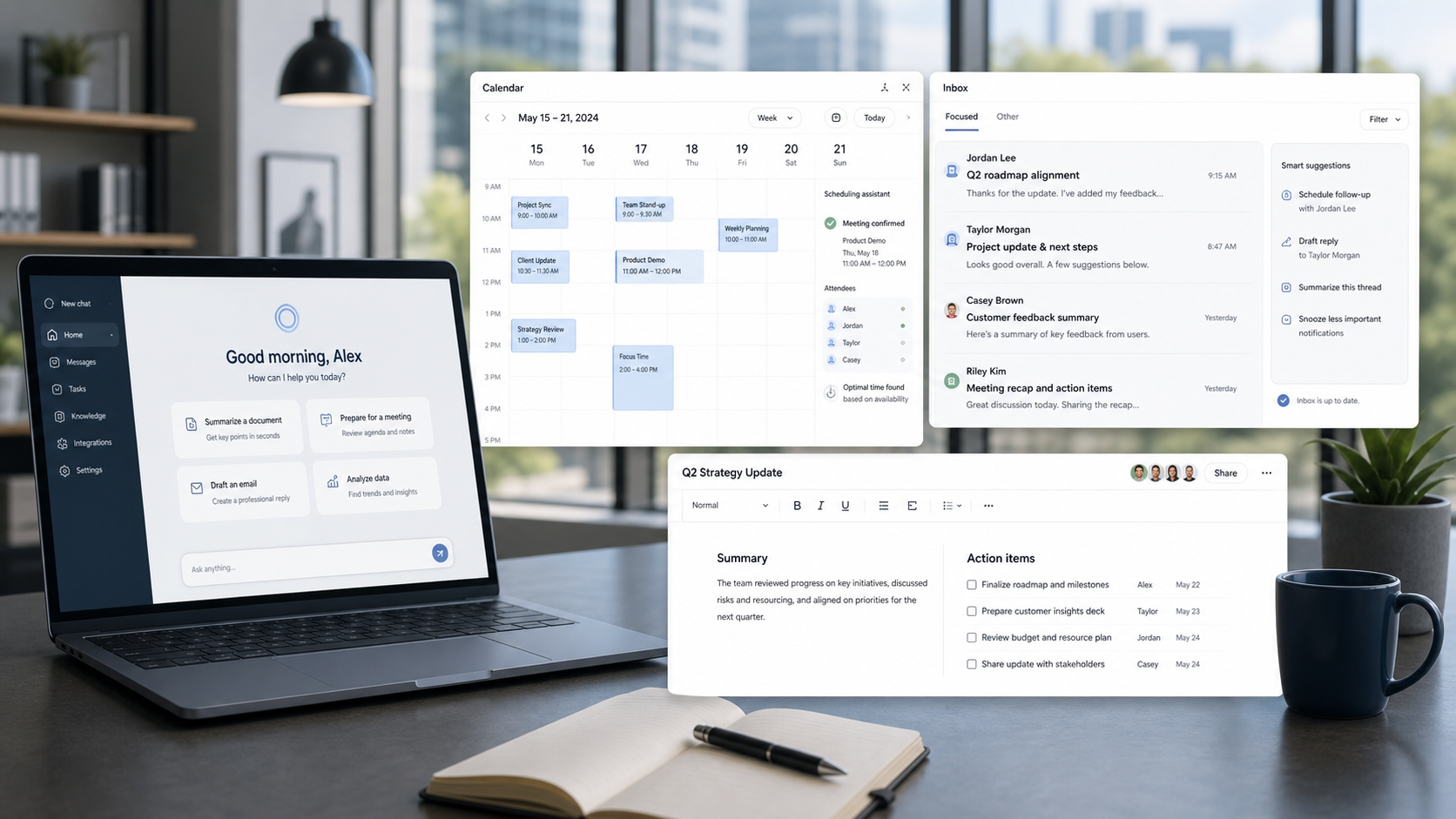
Microsoft Scout is the newest arrival in the Frontier family — Microsoft's early-access program for AI features that haven't hit general availability yet. It shows up inside Teams as what Microsoft calls a "virtual coworker": an agent with standing access to your inbox, calendar, and Teams messages that can reason over that context and, when you let it, actually go do something about it — draft and send mail, edit content, or drive a browser to finish a task end to end.
That last part is what makes it different from the Copilot chat experience most people already know. Copilot answers questions. Scout takes action. And because it can touch real systems on your behalf, Microsoft has locked it down harder than almost anything else in the Copilot family — which is also exactly why setting it up properly matters more than usual.
Part 1: What Scout actually is, and how it works
Scout runs as a Frontier preview feature, which means it sits outside the normal Copilot release cadence: it's early, it changes fast, and it's opt-in at the tenant level. Under the hood it's built to reason over three things at once — your Microsoft 365 data (mail, calendar, files), local files on the device, and the browser — and to combine them into a single working context instead of treating each as a separate silo.
Practically, that means a user can ask Scout to do something like "check my calendar for conflicts next week, draft a reschedule email to the people involved, and hold it for my review" — and Scout will pull the calendar data, compose the message, and stop at the point you've told it to stop. Where it stops is entirely configurable, and that's the part IT actually needs to think about before rolling it out.
Two things make Scout meaningfully different to govern compared to regular Copilot:
- It acts, not just answers. Automations and agentic actions are first-class citizens, not an edge case — so "what can it actually do" is a bigger question than "what can it see."
- It can leave the Microsoft 365 boundary. Scout uses your GitHub account for token billing and can route through third-party inference paths. That's why Microsoft requires an explicit organizational attestation before it will let anyone sign in at all — this isn't a normal feature flag.
Because of that combination, Microsoft built a deliberately strict two-gate access model: nothing works until both an admin has enabled Frontier for the tenant, and an admin has pushed out an Intune configuration policy that spells out exactly what the agent is and isn't allowed to touch. Installing the app itself is never blocked — sign-in is where all of this gets enforced, and it fails silently if either gate is missing.
That Intune policy — the second gate — is what most of this post walks through, right after a quick look at gate one. One thing worth flagging up front: Microsoft's own documentation walks through the Intune side as a device-targeted policy (assigned to a device group, validated by testing sign-in on a managed device). I assigned mine to a user group instead — the settings still live under the Computer Configuration node of the ADMX template, but the assignment scope is per-user rather than per-device. If you're following along, just be aware that the group you pick at the Assignments step determines who gets the policy, not necessarily which devices.
Part 2: Turning on Frontier for a pilot group (gate one)
Before any of the Intune work matters, gate one has to be open: Frontier itself needs to be turned on for the users you want to pilot Scout with. This lives in the Microsoft 365 admin center, not Intune, and it's the easiest of the two gates to configure.
Step 1 — Find the setting. In the admin center, go to Copilot → Settings → View all, and search for Frontier. You're looking for Copilot Frontier — described as "Enable exclusive early access program in your organization."
Step 2 — Choose your access scope. Clicking it opens the Turn on Frontier features panel, shown below:
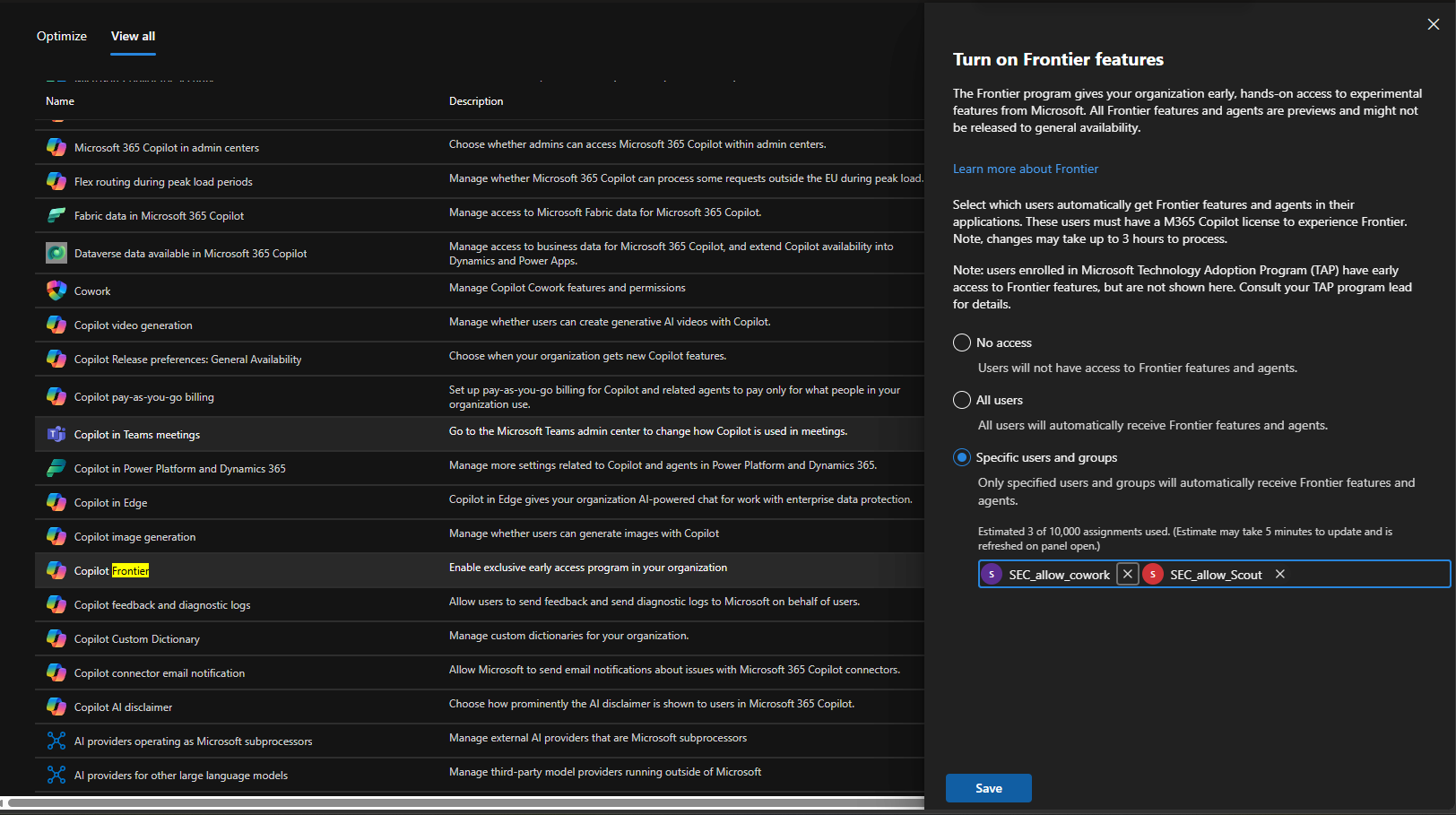
You get three options: No access, All users, or Specific users and groups. For a pilot, Specific users and groups is the obvious choice — it lets you scope Frontier down to exactly the security groups you want testing Scout, instead of flipping it on tenant-wide. In my case that's two groups: SEC_allow_cowork and SEC_allow_Scout, since Frontier covers more than just Scout and I want to keep the pilots separated.
A couple of details worth calling out from that panel: everyone in the assigned groups still needs an M365 Copilot license to actually experience Frontier, and Microsoft warns that changes can take up to three hours to process — so don't panic if a freshly added pilot user doesn't see anything right away. There's also a nice touch where the panel shows an estimated assignment count ("3 of 10,000 assignments used") based on group membership, refreshed each time you open the panel.
Step 3 — Save. Hit Save and give it time to propagate. Once that's done, gate one is open for your pilot group — but as covered above, that alone still isn't enough to let anyone sign in to Scout. Gate two, the Intune side, is next.
Part 3: Setting it up via Intune
The Intune policy is where you translate "what are we comfortable letting this agent do" into an actual, enforced configuration. It's organized into three categories under Computer Configuration → Microsoft Scout, and below are screenshots from my test environment along with the choices I made.
Step 1 — Import the ADMX templates. Go to intune.microsoft.com, sign in with a tenant admin account, then Devices → Configuration → Import ADMX, and upload the Microsoft Scout ADMX/ADML template files.
Step 2 — Start a new profile. Create profile → Administrative Templates, work through Basics, then land on Configuration settings, where the three Microsoft Scout categories live.
AI Models
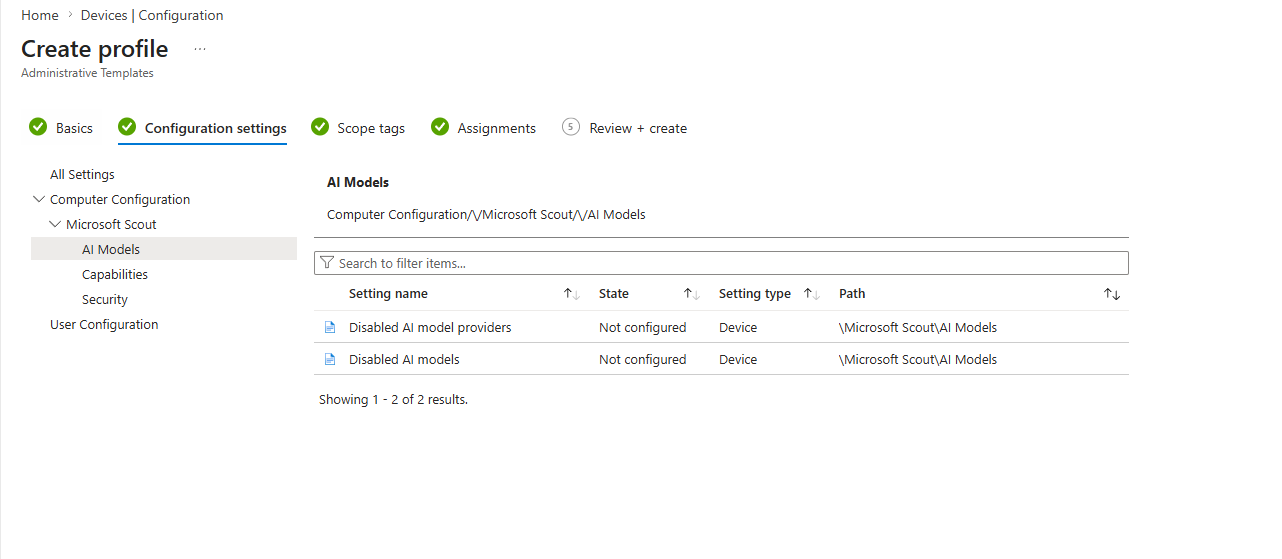
This category controls which AI models and providers Scout is even allowed to use:
- Disabled AI model providers — exclude entire providers, e.g. if you only want to allow Microsoft's own models.
- Disabled AI models — block individual models you're not ready to expose yet.
In my test environment both are still Not configured — I'm not excluding anything during the pilot. As I scale past the pilot group, this is one of the first places I want to make a deliberate call rather than leave on default.
Capabilities
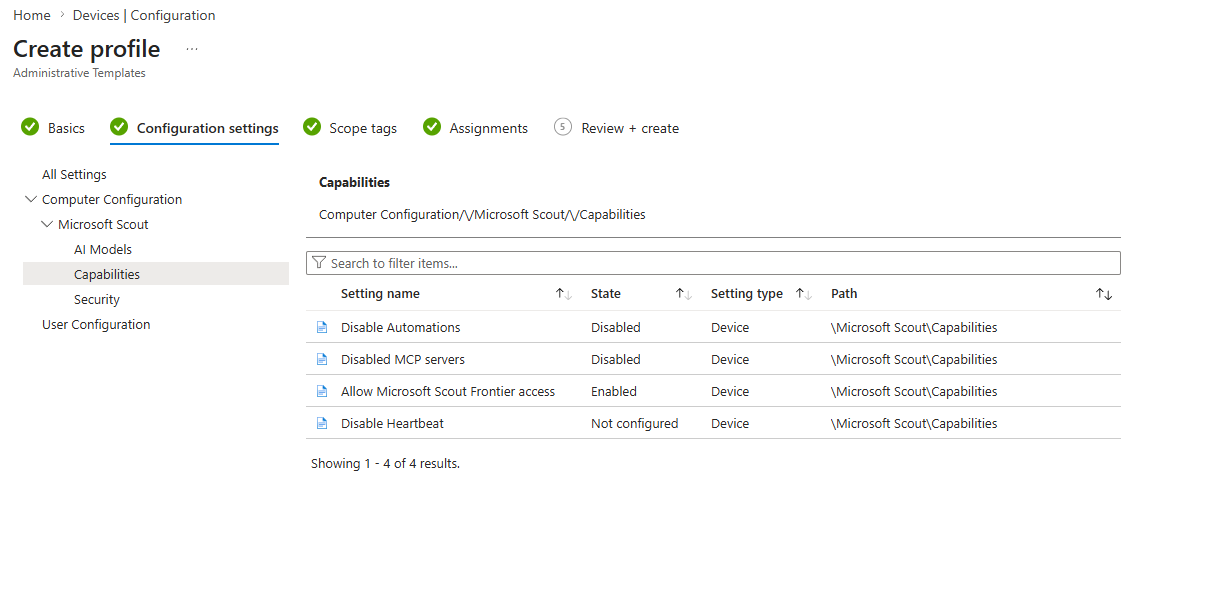
This is the category that decides what the agent is actually allowed to do:
- Disable Automations — set to Disabled in my test environment. Watch the double negative here: following standard ADMX convention, "Disable Automations = Disabled" should mean the policy that disables automations is itself switched off — i.e. automations are allowed. Worth double-checking in your own test environment rather than taking my word for it, since Microsoft's public docs don't spell out this specific setting yet.
- Disabled MCP servers — also set to Disabled — same logic, so MCP server connections should not be blocked.
- Allow Microsoft Scout Frontier access — the core switch. Set to Enabled. Without this, nobody gets past the second gate no matter what else is configured.
- Disable Heartbeat — left at Not configured.
My honest advice here: don't start wide open. For a pilot, actually disabling automations and MCP servers until you've watched the agent behave for a while is the safer default — you open things up in phases, not all at once.
Security
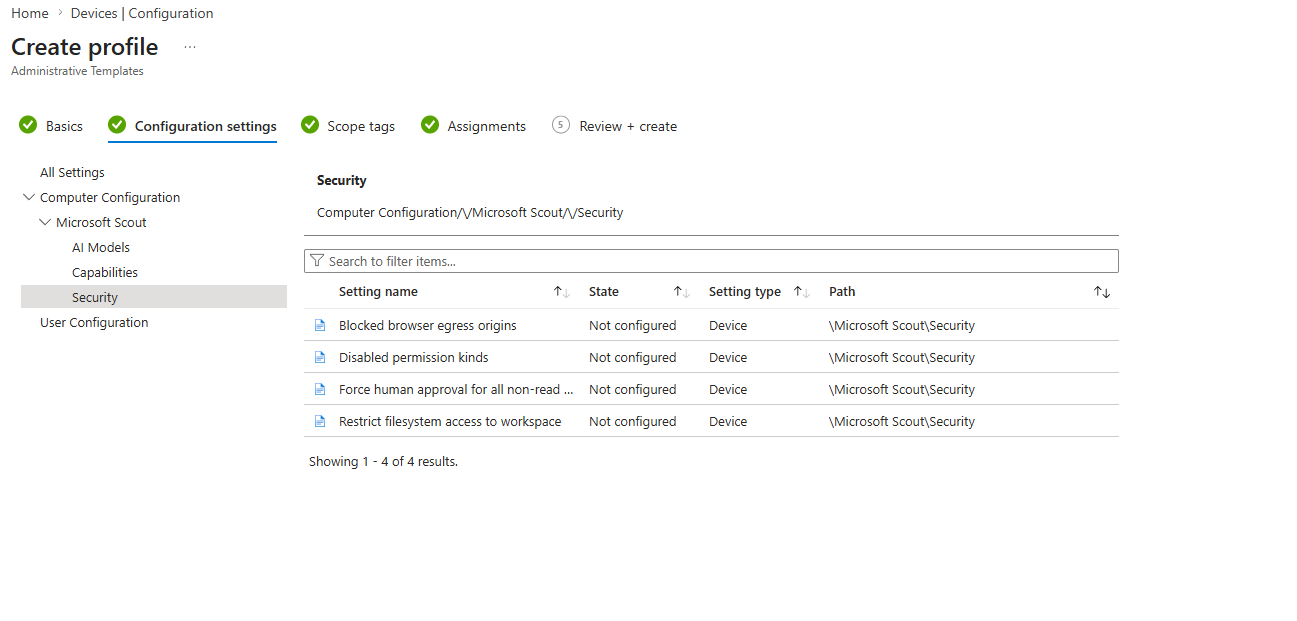
This is where the actual risk mitigation lives (Microsoft's public docs don't cover these settings in detail yet, so this section is based on what I see in my test environment rather than an official reference):
- Blocked browser egress origins — stop Scout from sending data to domains you haven't approved.
- Disabled permission kinds — turn off specific categories of permissions outright.
- Force human approval for all non-read... (cut off in the screenshot, but this is the setting that requires a human to approve anything beyond read-only actions).
- Restrict filesystem access to workspace — keeps Scout confined to the configured workspace instead of the whole filesystem.
All four are still Not configured in my test environment. If I had to pick the two settings to turn on first for a production rollout, it's Restrict filesystem access to workspace and Force human approval for non-read actions — biggest risk reduction for the smallest usability cost.
Step 3 — Finish the profile. Set Scope tags (Default works for most tenants), then assign the policy under Assignments. I assigned to a user group rather than a device group — start with a small pilot group either way, not your whole tenant — and complete it via Review + create.
Step 4 — Remember the attestation and licensing. Gate one (Frontier, Part 2 above) and this Intune policy still aren't the whole picture — you'll also need to complete the organizational attestation and make sure users have GitHub Copilot licenses assigned. Scout won't let anyone sign in until all of that lines up.
Downloading the client
Once the policy is live, users can grab the Scout client here:
Download Microsoft Scout (Frontier) — Official Microsoft Download Center
Installing it will always succeed. Signing in only works once every gate above is actually in place.
Where I landed
Scout is still a pilot for me, and the configuration reflects that: several settings are deliberately left at "Not configured" until I've seen enough real usage to make an informed call. If you're setting this up yourself, my suggestion is the same one I gave above — flip on Force human approval and Restrict filesystem access to workspace first, watch how the agent actually behaves with your pilot group, and expand from there.
The tech, as always, is the easy part. The governance conversation — what you're comfortable letting an agent do unsupervised — is the part worth taking your time on.